The goal
Wire an LED to the Arduino and turn it on with code.
You'll learn
- ■Which way around an LED goes (it only works one way)
- ■Why every LED needs a resistor
- ■How to upload a program to the Arduino
- ■What setup() and loop() mean
1You'll need



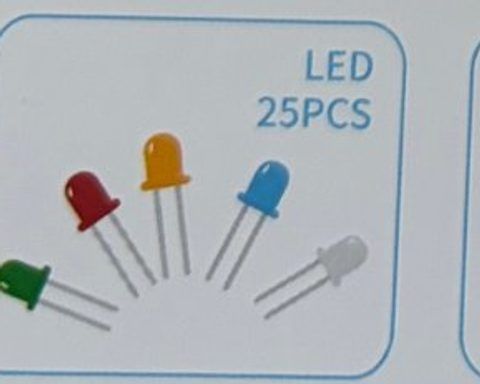
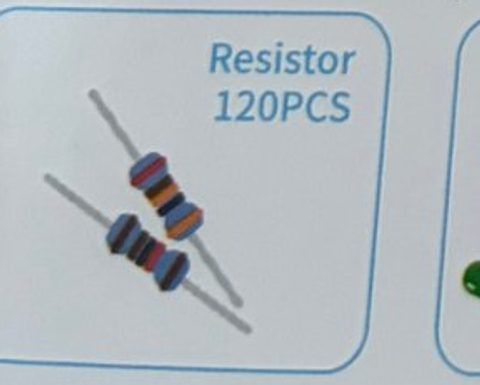

2Wire it up
Unplug the USB cable before you wire anything. Look closely at the LED: one leg is longer. The long leg is + (positive) and the short leg next to the flat edge is − (negative).
Pins used on the Arduino
- 1Pin 13 · Resistor → LED long leg (+)
- 2GND · LED short leg (−)
- All GND pins are connected together, so any GND works.
Step by step
- 1Push the LED into the breadboard so the two legs are in two different rows (for example, rows 10 and 11).
- 2Push one leg of the 220 Ω resistor into the same row as the LED's long leg. Put the other resistor leg in an empty row a few rows away.
- 3Run a jumper wire from the empty end of the resistor to Arduino pin 13.
- 4Run a jumper wire from the LED's short leg row to an Arduino GND pin.
- 5Double-check: pin 13 → resistor → LED long leg → LED short leg → GND. Then plug in the USB cable.
Connection checklist
| From | To | |
|---|---|---|
| ☐ | Arduino pin 13 | 220 Ω resistor |
| ☐ | Other end of resistor | LED long leg (+) |
| ☐ | LED short leg (−) | Arduino GND |
3The code
Click Copy code, paste it into a new sketch in the Arduino IDE (replacing everything), then click Upload.
// Session 1 - Light it up
// Turns an LED on and leaves it on.

int ledPin = 13;   // the pin our LED is wired to

void setup() {
  pinMode(ledPin, OUTPUT);     // this pin will send power OUT
  digitalWrite(ledPin, HIGH);  // HIGH = 5 volts = LED on
}

void loop() {
  // nothing to do here - the LED just stays on
}4How it works
setup() runs once
Everything inside setup() happens one time when the Arduino powers on. We use it to tell the Arduino that pin 13 is an output, then switch it on.
loop() runs forever
After setup() finishes, loop() repeats over and over, thousands of times per second. Ours is empty, so the LED just stays on. In the next tutorial we'll put code in here.
HIGH and LOW
digitalWrite(pin, HIGH) puts 5 volts on the pin. digitalWrite(pin, LOW) puts 0 volts on it. That's the whole secret of turning things on and off.
Why the resistor?
An LED lets through as much current as it can get, which is enough to destroy it. The 220 Ω resistor limits the current to a safe amount. Think of it as a speed bump.
5Try this
- AChange HIGH to LOW, upload again. What happens?
- BMove the resistor wire from pin 13 to pin 7 and change ledPin to 7. Does it still work?
- CSwap the LED around (long leg to GND). Why doesn't it light?
- DAdd a second LED on another pin and turn both on.
6Stuck?
LED doesn't light.+
Check the LED direction: long leg goes toward the resistor and pin 13. Make sure the resistor and LED legs are in the same breadboard row.
Upload fails with a port error.+
Go to Tools → Port and pick the one labeled Arduino Uno. If none shows up, try a different USB cable or port.
The little L light on the board turns on but my LED doesn't.+
Good sign: pin 13 is working. The problem is the wiring. Re-check every connection in the table above.