Before Session 1
Start here
Ten minutes of setup, then every tutorial on this site works the same way: wire it, paste the code, upload, play.
1. Get the computer talking to the Arduino
- 1
Install the Arduino IDE
The IDE is the program you write code in. Download it free from arduino.cc/en/software and pick your computer's version. On a Chromebook, use the Arduino Cloud Editor in the browser instead (your teacher will have a login).
- 2
Plug in the UNO
Connect the square end of the USB cable to the Arduino and the flat end to the computer. A green ON light should glow on the board. If a little light labeled L is blinking, that's normal: it's the test program that came with the board.
- 3
Tell the IDE which board you have
At the top of the IDE, open the board dropdown and choose Arduino Uno together with the port that says Arduino Uno next to it (on Windows it looks like COM3, on Mac like /dev/cu.usbmodem…). If nothing shows up, try another USB port or cable.
- 4
Upload a test
Go to File → Examples → 01.Basics → Blink, then click the → (Upload) button. The IDE compiles the code, sends it to the board, and says 'Done uploading'. The L light should blink once per second. You're ready to build.
2. How a breadboard works
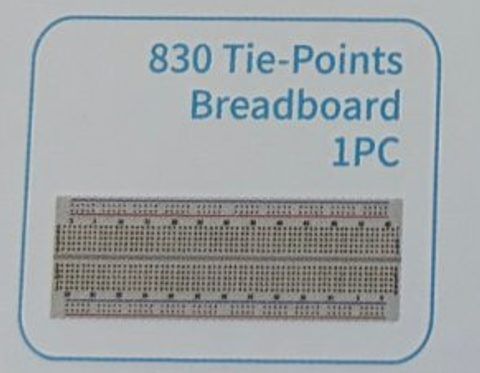
Rows of five are connected. Inside the board, each short row of 5 holes is one metal strip. Put two legs in the same row and they're wired together, no soldering needed.
The gap in the middle is a wall. The left half and right half of a row are NOT connected. Chips and buttons straddle this gap on purpose.
The long rails are for power. The lines along the edges (marked + and −) run the whole length. Connect Arduino 5V to + and GND to − and every part can grab power from there.
3. Reading parts
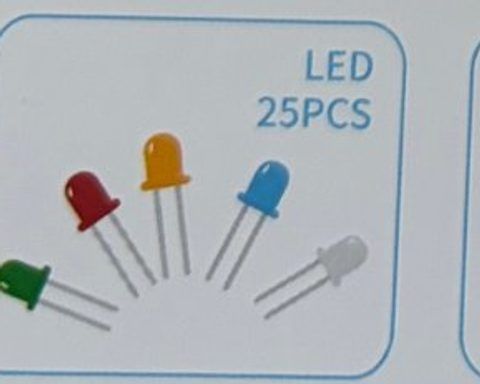
LEDs have a direction
Long leg = + (goes toward the Arduino pin). Short leg, on the side with the flat edge = − (goes to GND). Backwards just means it won't light; it won't break.
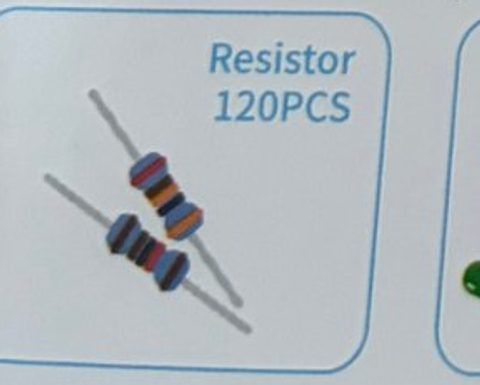
Resistors have color codes
- 220 Ω · red, red, brown · for LEDs
- 1 kΩ · brown, black, red
- 10 kΩ · brown, black, orange · for the light sensor
Resistors work either way around.
4. Words you'll see a lot
- Sketch
- An Arduino program. One file, ends in .ino.
- Upload
- Send your sketch to the board. Click the → arrow. Do this every time you change the code.
- Serial Monitor
- A text window (magnifying glass, top right) where the Arduino can print messages. Set it to 9600 baud.
- Pin
- A metal socket on the Arduino. Digital pins (0 to 13) switch on and off. Analog pins (A0 to A5) measure in-between values.
- GND
- Ground, the 0-volt side of every circuit. Every part needs a path back to GND.
- 5V
- The power pin. Five volts, enough for LEDs and sensors but not motors.
- Library
- Ready-made code for a part (a screen, a sensor). Install from Sketch → Include Library → Manage Libraries.