The goal
Read a push button and use an if statement to control the LED.
You'll learn
- ■Reading a pin with digitalRead()
- ■INPUT_PULLUP and why pressed = LOW
- ■if / else decisions
- ■Toggling with a single press
1You'll need
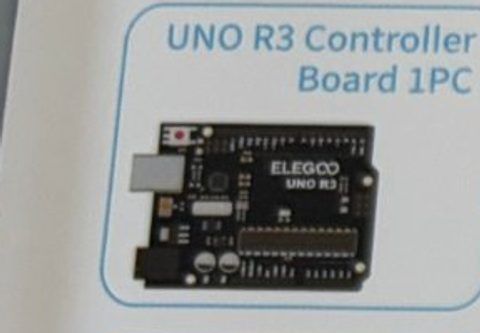


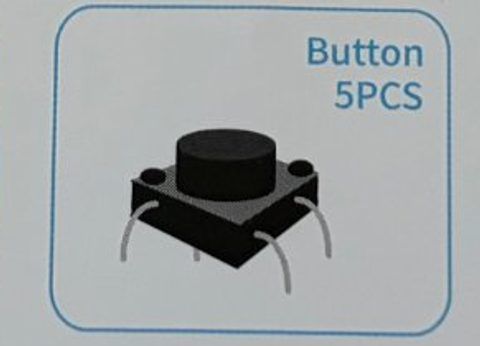
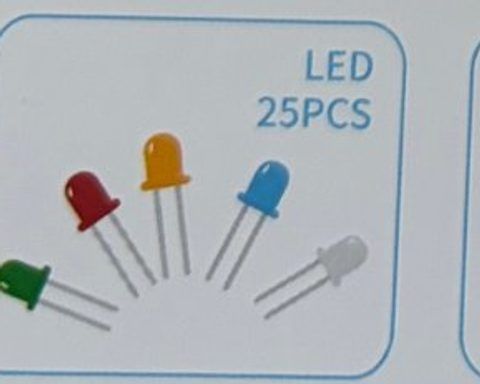
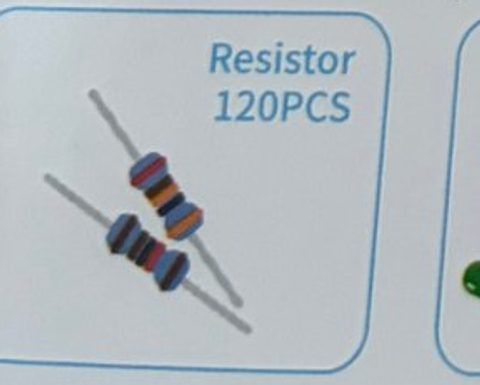

2Wire it up
Keep the LED wired to pin 13 from before. The button has four legs: the two legs on the same side are already connected. Pressing joins one side to the other.
Pins used on the Arduino
- 1Pin 2 · Button leg
- 2Pin 13 · Resistor → LED long leg
- 3GND · Button (diagonal leg) and LED short leg
- All GND pins are connected together, so any GND works.
Step by step
- 1Push the button across the gap in the middle of the breadboard so two legs are on each side. It should click in flat.
- 2Jumper wire from one button leg → Arduino pin 2.
- 3Jumper wire from the leg diagonally opposite → Arduino GND.
- 4LED: pin 13 → 220 Ω → LED long leg, LED short leg → GND (same as Light it up).
Connection checklist
| From | To | |
|---|---|---|
| ☐ | Button leg (top-left) | Arduino pin 2 |
| ☐ | Button leg (bottom-right, diagonal) | Arduino GND |
| ☐ | Arduino pin 13 | 220 Ω → LED long leg (+) |
| ☐ | LED short leg (−) | Arduino GND |
3The code
Click Copy code, paste it into a new sketch in the Arduino IDE (replacing everything), then click Upload.
// Session 1 - Push the button
int buttonPin = 2;
int ledPin = 13;

void setup() {
  pinMode(buttonPin, INPUT_PULLUP);  // a built-in resistor holds the pin HIGH until pressed
  pinMode(ledPin, OUTPUT);
}

void loop() {
  int state = digitalRead(buttonPin);  // HIGH = not pressed, LOW = pressed

  if (state == LOW) {
    digitalWrite(ledPin, HIGH);   // button down -> light on
  } else {
    digitalWrite(ledPin, LOW);    // button up -> light off
  }
}Like a real light switch. The lastState trick catches the exact moment the button goes down.
int buttonPin = 2;
int ledPin = 13;

bool ledOn = false;      // remembers whether the light is on
int lastState = HIGH;    // what the button was doing last time we looked

void setup() {
  pinMode(buttonPin, INPUT_PULLUP);
  pinMode(ledPin, OUTPUT);
}

void loop() {
  int state = digitalRead(buttonPin);

  // the button JUST went down (was HIGH, now LOW)
  if (state == LOW && lastState == HIGH) {
    ledOn = !ledOn;                           // flip it: true becomes false, false becomes true
    digitalWrite(ledPin, ledOn ? HIGH : LOW);
    delay(50);                                // ignore the tiny bounces of the metal contacts
  }

  lastState = state;
}4How it works
Input pins listen
So far we've used pins as outputs. pinMode(buttonPin, INPUT_PULLUP) makes pin 2 listen instead. digitalRead() tells us if it's seeing 5V (HIGH) or 0V (LOW).
Why pressed = LOW?
INPUT_PULLUP switches on a tiny resistor inside the Arduino that gently pulls the pin up to 5V. When you press the button, you connect the pin straight to GND, which wins. So: not pressed = HIGH, pressed = LOW. Backwards, but it saves us a resistor.
if / else
if (something is true) { do this } else { do that }. The Arduino checks the button thousands of times per second and picks a branch each time.
Bounce
When a button's metal contacts hit, they vibrate for a few milliseconds and the Arduino sees several presses. The delay(50) in the toggle version waits for the bouncing to stop.
5Try this
- AMake the LED turn OFF when you hold the button instead of on.
- BAdd a second button on pin 3. One turns the light on, the other turns it off.
- CCount presses: each press makes the LED blink that many times.
- DCombine with the RGB LED: each press changes to the next color.
6Stuck?
LED is always on, button does nothing.+
The button is probably not across the breadboard gap, so both wires are on legs that are already connected. Rotate the button 90 degrees.
LED flickers randomly.+
The GND wire from the button is loose, or you used INPUT instead of INPUT_PULLUP.
The toggle version flips twice per press.+
Increase delay(50) to delay(100).