The goal
Read the joystick's X, Y, and button, and light four LEDs like a compass.
You'll learn
- ■Reading two analog axes at once
- ■Thresholds (less than / greater than)
- ■The || (OR) operator
- ■Debugging with the Serial Monitor
1You'll need
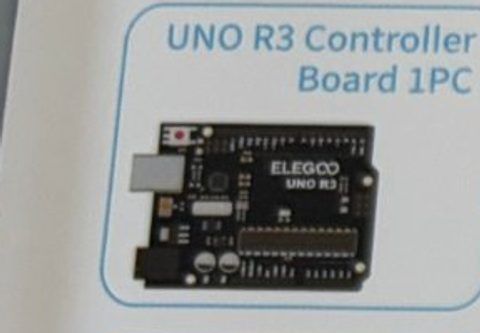
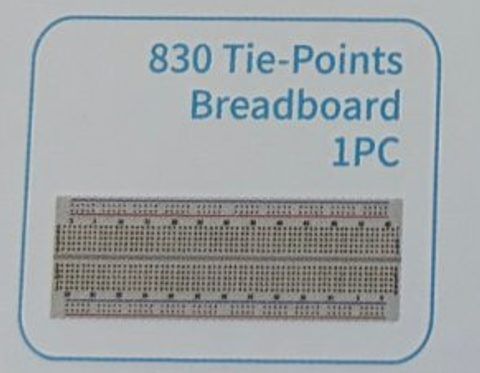
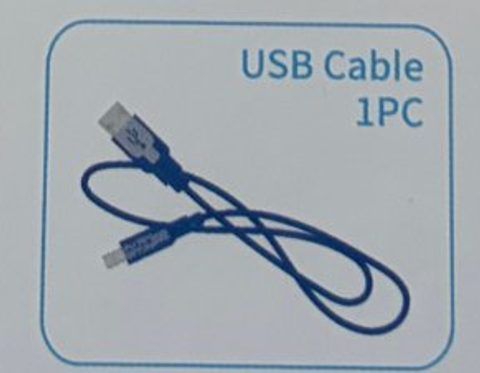
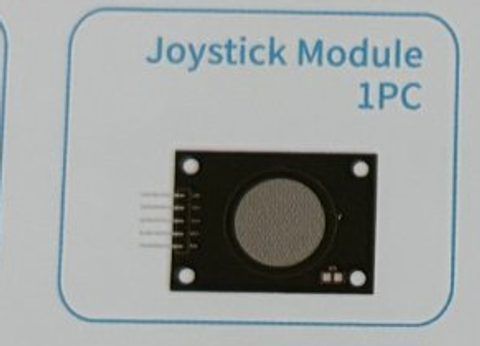
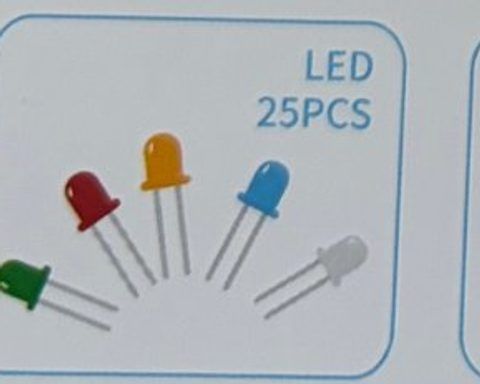
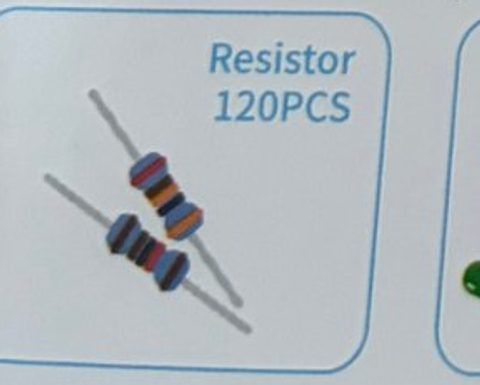
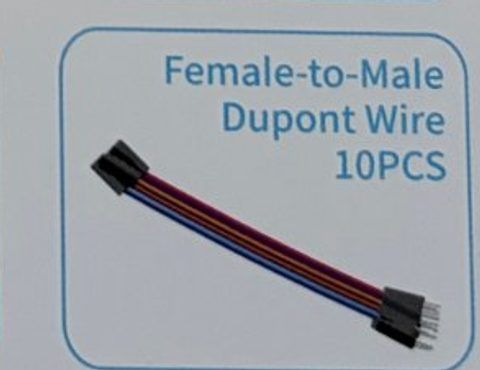
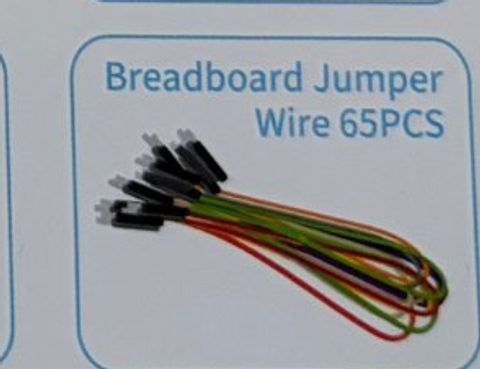
2Wire it up
The joystick module has five pins labeled GND, +5V, VRx, VRy, and SW. Use female-to-male wires. Arrange the four LEDs on the breadboard in a diamond: one at the top, bottom, left, and right.
Pins used on the Arduino
- 15V · Joystick +5V
- 2A0 · Joystick VRx
- 3A1 · Joystick VRy
- 4Pin 2 · Joystick SW (click)
- 5Pin 8 · UP LED
- 6Pin 9 · DOWN LED
- 7Pin 10 · LEFT LED
- 8Pin 11 · RIGHT LED
- 9GND · Joystick GND + all LED short legs
- All GND pins are connected together, so any GND works.
Step by step
- 1Joystick GND → Arduino GND. Joystick +5V → Arduino 5V.
- 2Joystick VRx → A0. Joystick VRy → A1. Joystick SW → pin 2.
- 3Jumper wire from Arduino GND to the breadboard − rail so all four LEDs can share it.
- 4Each LED: 220 Ω resistor from an Arduino pin to the long leg, short leg to the − rail. UP = pin 8, DOWN = pin 9, LEFT = pin 10, RIGHT = pin 11.
Connection checklist
| From | To | |
|---|---|---|
| ☐ | Joystick GND | Arduino GND |
| ☐ | Joystick +5V | Arduino 5V |
| ☐ | Joystick VRx | Arduino A0 |
| ☐ | Joystick VRy | Arduino A1 |
| ☐ | Joystick SW | Arduino pin 2 |
| ☐ | Arduino pin 8 | 220 Ω → UP LED long leg |
| ☐ | Arduino pin 9 | 220 Ω → DOWN LED long leg |
| ☐ | Arduino pin 10 | 220 Ω → LEFT LED long leg |
| ☐ | Arduino pin 11 | 220 Ω → RIGHT LED long leg |
| ☐ | All LED short legs | Breadboard − rail → Arduino GND |
3The code
Click Copy code, paste it into a new sketch in the Arduino IDE (replacing everything), then click Upload.
// Session 3 - Joystick lights
int xPin = A0;
int yPin = A1;
int buttonPin = 2;

int upLed = 8;
int downLed = 9;
int leftLed = 10;
int rightLed = 11;

void setup() {
  pinMode(buttonPin, INPUT_PULLUP);   // the joystick click works like our push button
  pinMode(upLed, OUTPUT);
  pinMode(downLed, OUTPUT);
  pinMode(leftLed, OUTPUT);
  pinMode(rightLed, OUTPUT);
  Serial.begin(9600);
}

void loop() {
  int x = analogRead(xPin);   // 0 (left) ... about 512 (center) ... 1023 (right)
  int y = analogRead(yPin);   // 0 (up)   ... about 512 (center) ... 1023 (down)
  bool pressed = (digitalRead(buttonPin) == LOW);

  // print everything so we can see what the stick is doing
  Serial.print("x=");
  Serial.print(x);
  Serial.print("  y=");
  Serial.print(y);
  Serial.print("  pressed=");
  Serial.println(pressed);

  // || means OR: light the LED if the stick is pushed that way OR the button is pressed
  digitalWrite(leftLed,  x < 300 || pressed);
  digitalWrite(rightLed, x > 700 || pressed);
  digitalWrite(upLed,    y < 300 || pressed);
  digitalWrite(downLed,  y > 700 || pressed);

  delay(50);
}4How it works
Two knobs in one stick
A joystick is really two potentiometers (turnable resistors) at right angles. Push left-right and VRx changes. Push up-down and VRy changes. At rest both sit near the middle, around 512.
Thresholds
We don't care about the exact number, only whether the stick is pushed far enough. x < 300 means 'pushed clearly left', x > 700 means 'clearly right'. The dead zone in the middle stops the LEDs from flickering when the stick is centered.
true and false are numbers
In Arduino code, true is 1 and false is 0, and HIGH is 1 and LOW is 0. So digitalWrite(leftLed, x < 300) writes HIGH when the comparison is true. A neat shortcut that saves four if statements.
5Try this
- AOpen the Serial Monitor and find the exact center values of your stick. Adjust the thresholds.
- BIf left and right feel swapped, rotate the joystick, or swap the wires on A0 and A1.
- CAdd a fifth LED in the middle that's on when the stick is centered.
- DUse analogWrite() so the LEDs get brighter the further you push (hint: map()).
6Stuck?
All LEDs stay on.+
SW is probably floating. Check the SW wire goes to pin 2 and that pinMode uses INPUT_PULLUP.
x or y is stuck at 0 or 1023.+
The joystick isn't getting power. Check the +5V and GND wires.
Only diagonal directions work.+
Thresholds 300 and 700 are too close to your center values. Print x and y and pick new numbers.