The goal
Wire the 16-character, 2-row LCD and print text with the LiquidCrystal library.
You'll learn
- ■Wiring a 16-pin display carefully
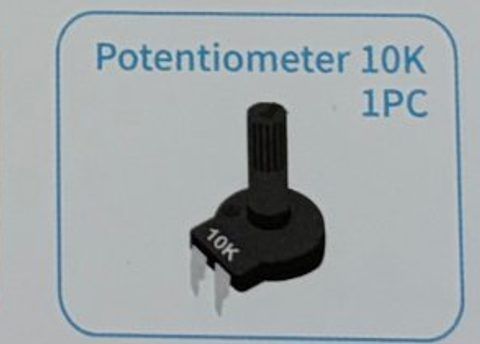
- ■Setting contrast with a potentiometer
- ■lcd.print() and lcd.setCursor()
- ■millis() for a running clock
1You'll need
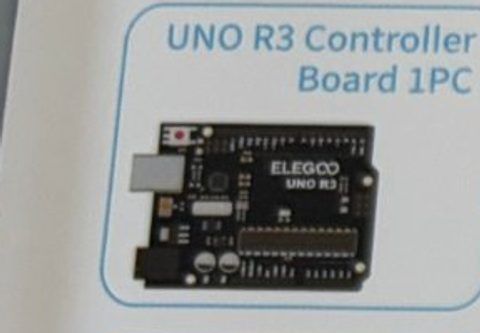
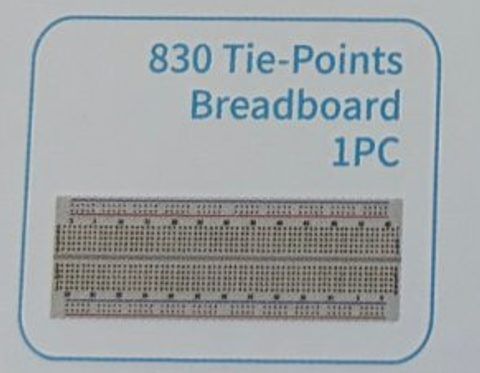
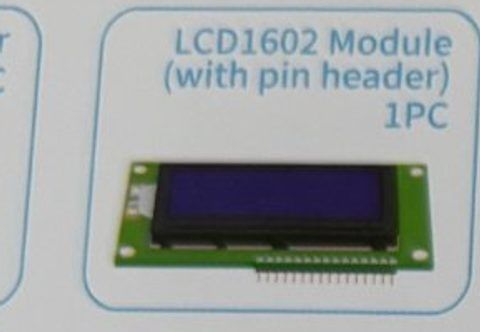
2Wire it up
This is the most wires you've used. Go slowly and tick each one off. The LCD's 16 pins are numbered 1 to 16 from left to right (the side with the pins is the bottom). Plug the LCD into the breadboard so each pin is in its own row.
Pins used on the Arduino
- 1Pin 12 · LCD RS (pin 4)
- 2Pin 11 · LCD E (pin 6)
- 3Pin 5 · LCD D4 (pin 11)
- 4Pin 4 · LCD D5 (pin 12)
- 5Pin 3 · LCD D6 (pin 13)
- 6Pin 2 · LCD D7 (pin 14)
- 75V · + rail: LCD VDD, backlight A (via 220 Ω), pot
- 8GND · − rail: LCD VSS, RW, K, pot
- All GND pins are connected together, so any GND works.
Step by step
- 1Power rails: Arduino 5V → breadboard + rail. Arduino GND → breadboard − rail.
- 2Potentiometer: push it into three rows. Left leg → + rail, right leg → − rail, middle leg → LCD pin 3 (V0). This knob sets contrast.
- 3LCD pin 1 (VSS) → − rail. LCD pin 2 (VDD) → + rail. LCD pin 3 (V0) → potentiometer middle leg.
- 4LCD pin 4 (RS) → Arduino 12. LCD pin 5 (RW) → − rail. LCD pin 6 (E) → Arduino 11.
- 5Skip LCD pins 7, 8, 9, 10.
- 6LCD pin 11 (D4) → Arduino 5. Pin 12 (D5) → Arduino 4. Pin 13 (D6) → Arduino 3. Pin 14 (D7) → Arduino 2.
- 7Backlight: LCD pin 15 (A) → 220 Ω → + rail. LCD pin 16 (K) → − rail.
- 8Plug in USB. The backlight should glow. Turn the potentiometer until you see a row of faint boxes, then upload the code.
Connection checklist
| From | To | |
|---|---|---|
| ☐ | LCD 1 (VSS) | GND (− rail) |
| ☐ | LCD 2 (VDD) | 5V (+ rail) |
| ☐ | LCD 3 (V0) | Potentiometer middle leg · contrast |
| ☐ | LCD 4 (RS) | Arduino pin 12 |
| ☐ | LCD 5 (RW) | GND (− rail) |
| ☐ | LCD 6 (E) | Arduino pin 11 |
| ☐ | LCD 7, 8, 9, 10 | not connected |
| ☐ | LCD 11 (D4) | Arduino pin 5 |
| ☐ | LCD 12 (D5) | Arduino pin 4 |
| ☐ | LCD 13 (D6) | Arduino pin 3 |
| ☐ | LCD 14 (D7) | Arduino pin 2 |
| ☐ | LCD 15 (A) | 220 Ω → 5V (+ rail) · backlight |
| ☐ | LCD 16 (K) | GND (− rail) |
| ☐ | Potentiometer outer legs | one to 5V, one to GND |
3The code
Click Copy code, paste it into a new sketch in the Arduino IDE (replacing everything), then click Upload.
// Session 4 - Hello, LCD
#include <LiquidCrystal.h>   // built into the Arduino IDE

// Which Arduino pins are wired to: RS, E, D4, D5, D6, D7
LiquidCrystal lcd(12, 11, 5, 4, 3, 2);

void setup() {
  lcd.begin(16, 2);              // 16 columns, 2 rows
  lcd.print("Hello, Imago Dei");  // exactly 16 characters!
}

void loop() {
  lcd.setCursor(0, 1);           // column 0, row 1 (the second row)
  lcd.print("Seconds: ");
  lcd.print(millis() / 1000);    // milliseconds since power-on, divided into seconds
}Replace setup() and loop() with these. Messages longer than 16 characters can scroll across.
void setup() {
  lcd.begin(16, 2);
  lcd.print("Imago Dei Learning Center Arduino Lab");
}

void loop() {
  lcd.scrollDisplayLeft();   // shift everything one spot to the left
  delay(300);
}4How it works
Why so many wires?
The LCD talks in 4-bit mode: four data wires (D4 to D7) carry the letters, RS says 'this is a command' or 'this is text', and E says 'read it now'. The LiquidCrystal library wiggles all six for you.
Contrast
Pin 3 (V0) sets how dark the characters are. Too low and the screen looks blank. Too high and you see 16 black boxes. The potentiometer lets you dial in the sweet spot.
Rows and columns
lcd.setCursor(column, row) moves the invisible cursor. Columns go 0 to 15, rows are 0 (top) and 1 (bottom). Whatever you lcd.print() next appears from there.
millis()
millis() counts the milliseconds since the Arduino turned on. Dividing by 1000 turns it into seconds. Unlike delay(), it doesn't freeze the Arduino, so the screen keeps updating smoothly.
5Try this
- APrint your name on the top row and your favorite number on the bottom.
- BShow minutes and seconds like a stopwatch: millis() / 60000 for minutes.
- CAdd the Session 1 button and print 'Pressed!' while it's held.
- DMake your own character with lcd.createChar(). Search 'LiquidCrystal createChar' for the recipe.
6Stuck?
Backlight on but screen totally blank.+
Turn the potentiometer all the way one direction, then the other. If still blank, check VSS, VDD, and V0 wiring.
A row of 16 solid boxes.+
Contrast is too high (turn the pot) or the data wires RS/E/D4-D7 aren't connected right. Check them against the table one by one.
Random garbage characters.+
One data wire is loose, or you changed the pin numbers in the code without changing the wiring. Press the Arduino reset button after fixing.
Text appears but only on one row or half the screen.+
lcd.begin(16, 2) might be missing from setup(), or D4-D7 are swapped.